
Some links in this article may be affiliate links, sent at no added cost to you. They do not influence our evaluations.
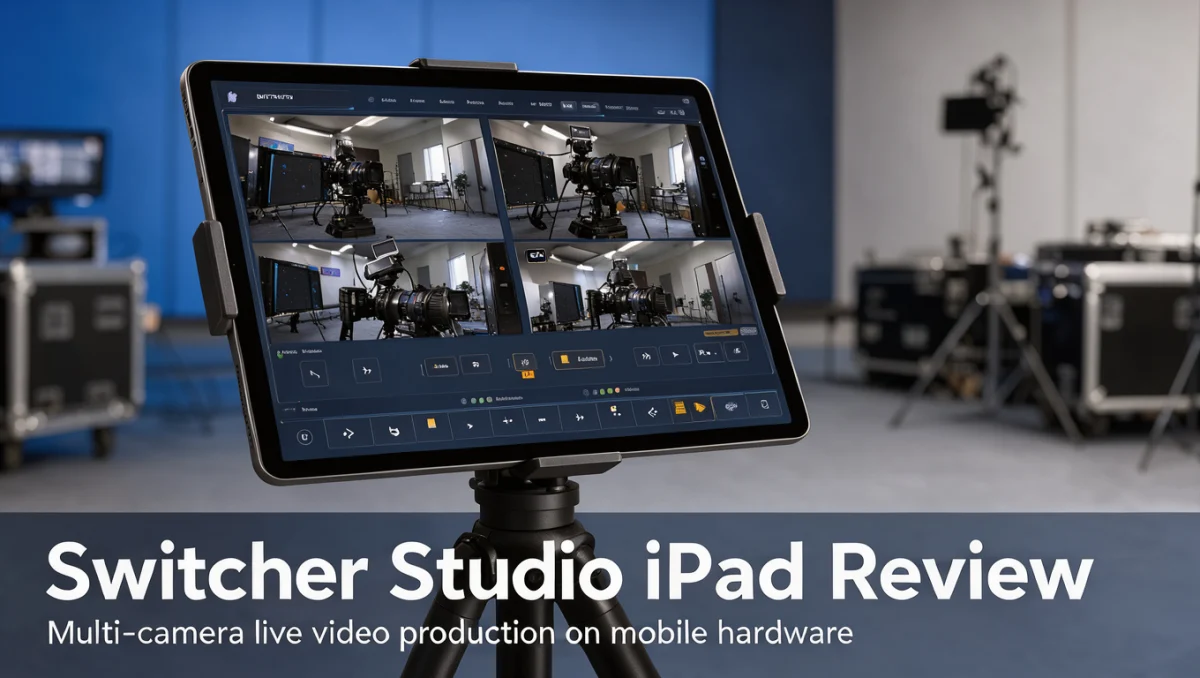
Creators, teachers and small organizations increasingly want multi-camera video mixing without a rack of traditional hardware. A switcher studio ipad workflow promises exactly that: a touchscreen control room that fits in a bag. Here is how it works in practice and where it falls short.
Live video depends on steady synchronization, clean transitions and graphics that can be updated mid-broadcast. Mobile producers often ask whether a tablet can genuinely replace a bulky control room while still delivering a solid on-air picture.
Quick take: Our score for this setup is 7.9 out of 10. It suits creators, educators and businesses that need portable multi-source streaming. It is a weaker fit for productions relying on physical audio consoles, SDI broadcast hardware or specialized enterprise cabling.
| Evaluation Dimension | Summary Assessment |
|---|---|
| Tested Truth score | 7.9 / 10 |
| Best for | Creators and organizations wanting multi-camera mobile streams without physical switchers |
| Not ideal for | Broadcast engineering crews needing heavy infrastructure and dedicated hardware interfaces |
| Key strengths | Multi-angle switching, customizable on-screen graphics and portable tablet control |
| Check before buying | Device compatibility, network bandwidth requirements and subscription limits on the official site |
1. How Tested Truth Evaluated the Software
We assessed what the product is designed to do, who it serves and how it stacks up against similar tools, using our seven criteria: features, ease of use, pricing and value, integrations, audience fit, support and competitive position. Plans and prices change frequently, so we flag what to verify on the official website. This article was researched and drafted with AI assistance, then reviewed and edited by the Tested Truth Editorial Team.
2. What the iPad Switcher Does and Who Uses It
This category of software turns a tablet into a portable control center for television-style production. Rather than routing cables into a heavy video mixer, crews manage camera feeds, audio inputs and graphic overlays through a single software interface.
Tools in this space let producers switch angles, display lower thirds, play recorded clips and push output to streaming platforms. For teams building out their Collaboration & Productivity stack, mobile mixing trims transport overhead while widening what a small crew can produce across varied venues.
2.1. The Move Toward Tablet-Based Production
Traditional switching required physical vision mixers, composite cabling, power distribution units and trained operators. Tablet-based software consolidates those roles onto a touch interface, letting one person watch the sources and choose the live program with simple gestures.
This changes how field productions handle sports, campus events, worship services and community conferences. Wireless links between capture devices and the main console shrink the footprint from a van full of equipment to a single carrying bag.
2.2. Typical Audience Profiles
The software targets live broadcasters working outside standard studio rooms. Key segments include:
- School athletic departments streaming local games from the sidelines.
- Independent creators hosting regular interviews and tutorials.
- Houses of worship sharing weekend services with remote congregations.
- E-commerce brands demonstrating products through interactive live shopping.
- Corporate communicators producing internal town halls across distributed offices.
3. Core Features Explained
Judging production software means checking how well it handles real-time pressure: source switching, graphic rendering, audio balance and outbound transmission reliability.
3.1. Multi-Camera Source Management
Multi-camera switching lets a director capture a scene from several angles at once. Over wireless connections, the tablet acts as the host switcher, pulling feeds from secondary mobile devices placed around the venue.
Operators preview each incoming angle before sending it to air. Transition styles such as hard cuts, dissolves and custom wipes help establish pacing suited to sports, concerts or formal lectures.
3.2. Real-Time Graphic Overlays and Lower Thirds
On-screen graphics give viewers context during educational streams, sports coverage and presentations. The software can insert text banners, presenter titles, scoreboards and logos over the live signal.
Producers can set up graphic templates in advance so brand colors and typography stay consistent. Dynamic title fields let operators update a speaker's name or a score instantly without interrupting the stream.
3.3. Multimedia Asset Playback
Broadcasts often mix pre-recorded packages, intro loops, music beds and static slides into live camera feeds. A media library lets crews queue these assets alongside camera inputs.
Tapping a recorded clip moves program video and audio to that file, giving camera operators time to reframe their shots. This staging mirrors commercial studio routines on a handheld device.
3.4. Output Routing and Destination Broadcasting
Production tools must send high-definition streams to audience platforms, archives and external displays. The software connects to streaming services using standard protocols, so creators can reach viewers wherever they gather online.
Beyond internet destinations, many setups send program video to projectors or monitors inside the venue, through external video adapters or network-based sharing.
4. Workflows and Setup Best Practices
Running a mobile production suite well depends on preparation, network planning and stable equipment. Experienced crews follow consistent routines to avoid dropouts during live transmission.
4.1. Network Preparation
Wireless multi-camera streaming needs stable throughput between every capture device and the host tablet. Because video sends continuous data, public Wi-Fi often causes dropped frames and stutter.
Teams should deploy a dedicated local router isolated from audience traffic. For off-site broadcasts, verify upload speed and keep sufficient headroom above the target bitrate.
4.2. Camera Placement and Stability
Picture quality depends on thoughtful placement and secure mounting. When staging several mobile devices, follow standard production practice:
- Mount every capture device on a sturdy tripod to eliminate handheld shake.
- Place primary wide-angle cameras along the axis of action to keep orientation clear.
- Position close-up cameras near key speakers or performers to capture reactions.
- Connect external power banks to every device to avoid battery loss during long broadcasts.
- Lock focus and exposure manually on each device to prevent distracting lighting shifts.
4.3. Audio Capture and Synchronization
Clean audio is the most critical part of a professional broadcast. Built-in tablet microphones pick up room reverb and ambient noise, so external capture is essential.
Creators typically connect an audio interface or wireless lavalier receiver directly to the host tablet. The software mixer offers gain control, mute toggles and audio-follow-video routing to keep sound aligned with visual switches.
5. Ease of Use and Learning Curve
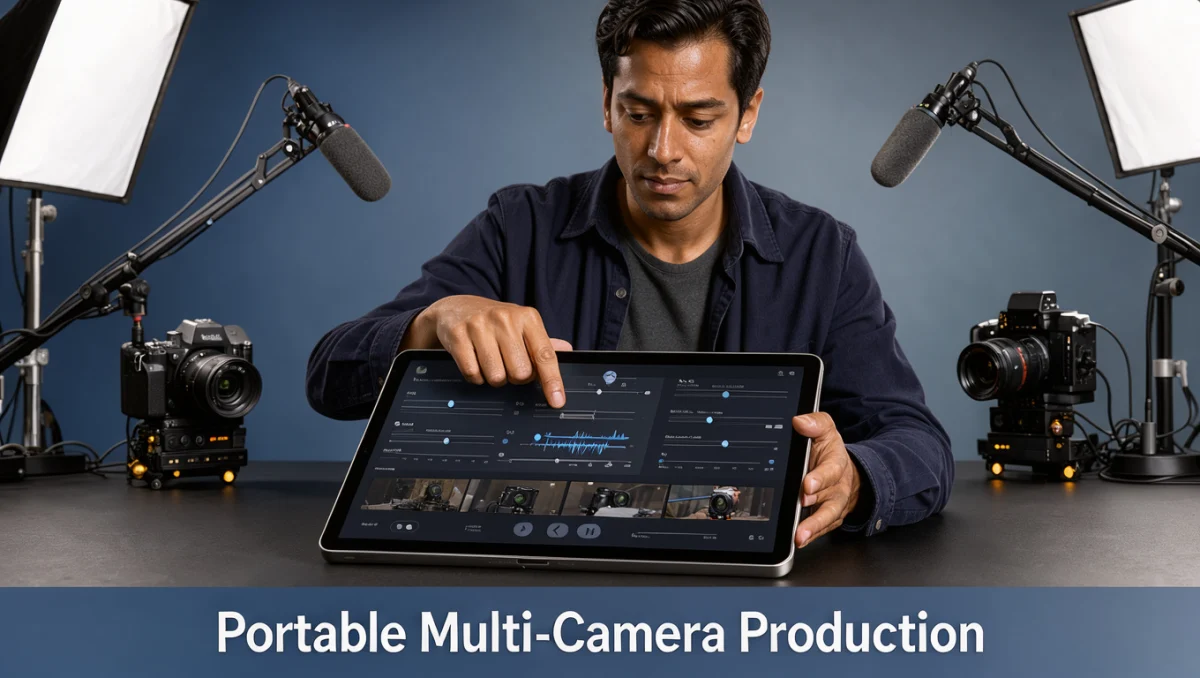
Live switching carries heavy cognitive load: operators watch several inputs while managing levels and timing graphics. The interface design decides whether one creator can run the show or whether a dedicated crew is needed.
Sources appear as visual arrays, with secondary feeds in preview boxes beneath the program window. Tapping a source sends it live, while contextual menus open graphics and media assets.
Users comfortable with mobile operating systems will find the drag-and-drop mechanics intuitive compared with complex desktop applications. Mastering audio gain staging, manual exposure matching and reliable network setup still takes focused rehearsal before critical public events.
6. Pros and Cons of Mobile Video Mixing
Evaluating this software means weighing operational trade-offs rather than marketing claims. Live broadcasting balances portability against expandability.
6.1. Advantages
- Full multi-camera setups travel inside standard backpacks.
- Lower acquisition cost than dedicated vision mixers and SDI cabling.
- A touch interface speeds up graphic deployment and camera selection.
- Rapid deployment makes spontaneous coverage practical for small teams.
- Recording, mixing, graphics and web streaming live on one tablet screen.
6.2. Disadvantages and Workarounds
- Wireless reliance exposes productions to local interference; dedicated router hardware reduces the risk.
- Sustained high-bitrate encoding drains batteries quickly, so plan external power.
- Direct sunlight can cause thermal throttling; use shaded mounts and cooling accessories.
- Legacy connectors such as SDI or balanced XLR need intermediate conversion hardware.
7. Comparing Similar Tools
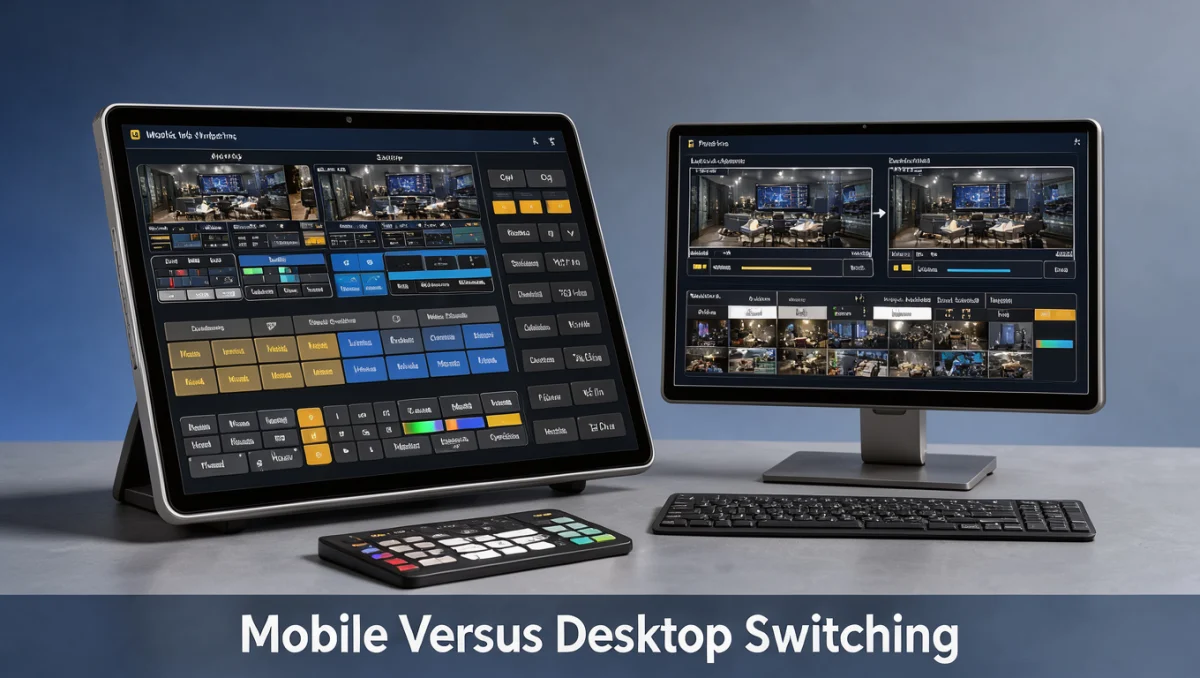
Buyers face several categories of streaming software, from mobile apps to full desktop suites. Knowing where tablet tools sit in the market helps you invest appropriately.
| Software Solution | Best For | Market Positioning | Key Consideration |
|---|---|---|---|
| Switcher Studio | Mobile live teams and content creators | Multi-camera mixing centered on mobile hardware | Depends on mobile devices and local Wi-Fi |
| OBS Studio | Desktop streamers and technical operators | Open-source desktop encoding and scene composition | Needs capable desktop hardware and manual setup |
| vMix | Studio installations and corporate events | Windows-based production with advanced routing | Requires a dedicated PC and capture card infrastructure |
| Ecamm Live | Solo creators and online educators | Mac-focused live streaming and presentation software | Limited to desktop and laptop setups |
Buyers who prioritize mobility, quick assembly and wireless multi-camera switching will lean toward mobile-first tools. Productions needing capture cards, complex green-screen keying or extensive automation generally favor desktop suites.
8. Who Should Choose This Setup
Different production styles call for different architectures. Clear requirements prevent overspending on unneeded gear or adopting tools that fail under pressure.
8.1. Independent Creators and Podcasters
Interviewers and video podcasters gain multi-angle recording without a complex control desk. Multiple angles keep seated formats visually dynamic, while built-in lower thirds give solo productions a polished look.
8.2. K-12 and Collegiate Athletic Departments
School sports programs often stream from bleachers, fields and gyms where running long cables is hazardous or impractical. Wireless cameras let student crews place units along sidelines and end zones with minimal setup.
8.3. Small and Medium Businesses and Retailers
Retailers running live commerce can show products from several perspectives at once. A wide shot can frame the presenter while a close-up highlights texture, craftsmanship or instructional details.
8.4. Teams That May Need Alternatives
Organizations with permanent studios, SDI patch bays, hardware teleprompters or complex tally systems will likely find mobile software insufficient. Esports broadcasters needing desktop screen capture across several high-refresh monitors should consider desktop-native encoding platforms instead.
9. Choosing the Right Subscription
Subscription tiers vary by feature access, destination support and scaling needs. Because plans and promotions change often, confirm current details on the official Switcher Studio pricing page before committing.
| What to Check on the Official Website | Why It Matters for Your Production |
|---|---|
| Concurrent camera connection limits | Sets how many wireless angles you can switch between at once. |
| Streaming destination allowances | Determines whether you can broadcast to several platforms simultaneously. |
| Cloud asset storage allowances | Affects how many clips and graphic packages you can keep ready remotely. |
| Audio routing and multitrack recording | Decides whether editors can access isolated audio tracks after the broadcast. |
| Team seats and collaborator permissions | Controls how many staff or volunteers can access accounts and templates. |
| Local versus cloud recording resolution | Ensures archived files meet your post-production standards. |
10. Equipment Preparation Checklist
A clean multi-camera broadcast takes systematic preparation. Before going live, complete these checks:
- Clean every mobile camera lens of smudges and dust with a microfiber cloth.
- Confirm all capture devices and the host tablet share the same dedicated wireless network.
- Disable background updates, cloud syncing and notifications on every production device.
- Test external audio levels using headphones connected to the main monitoring interface.
- Run a private end-to-end transmission test to confirm bitrate stability on your connection.
11. Frequently Asked Questions
What network conditions should I arrange before a live broadcast?
Use a dedicated wireless access point isolated from general audience traffic. Upload speed should comfortably exceed your planned bitrate, and capture devices should stay in clear line of sight of the router to limit latency.
How should crews handle audio on a tablet switcher?
Route primary microphones through an external audio interface connected to the host tablet rather than relying on internal microphones. Testing levels with closed-back headphones before air keeps speech clear and free of room echo.
Which accessories are essential for mobile switching?
Sturdy tripods with secure device clamps, high-capacity external batteries, a high-throughput wireless router and dedicated audio cables are the core kit. For outdoor filming, sun hoods help prevent overheating during long broadcasts.
How do small teams choose between mobile mixing and desktop encoding?
Weigh your need for mobility against your need for specialized connectors. Teams needing fast setup in varied locations benefit from tablet switchers, while fixed studios requiring multiple desktop captures and capture cards favor desktop suites.
What should I verify on the official website before subscribing?
Confirm current limits on concurrent cameras, multi-destination streaming, cloud storage and supported input resolutions. Reviewing the official feature matrix ensures your tier matches your upcoming production commitments.
12. Final Verdict and Ratings
For mobile directors and remote creators, the switcher studio ipad platform offers a capable, portable alternative to traditional hardware vision mixers. Running multi-camera broadcasts from a lightweight touch interface makes multi-angle storytelling accessible to schools, sports clubs, houses of worship and independent creators.
Teams with complex physical studios will keep dedicated desktop rigs, but organizations that value agility, fast deployment and minimal bulk will find this mobile ecosystem well suited to modern streaming needs.
| Criterion | Score / 10 | Reason |
|---|---|---|
| Features | 8.2 / 10 | Comprehensive multi-camera switching, graphics and media playback on mobile hardware. |
| Ease of Use | 8.8 / 10 | Touch navigation simplifies camera selection and graphic deployment for solo operators. |
| Pricing and Value | 7.4 / 10 | Verify current tiers on the official website to match feature limits to your budget. |
| Integrations | 7.0 / 10 | Check supported streaming platforms and peripheral compatibility for your audio gear. |
| Audience Fit | 8.6 / 10 | Strongly aligned with remote educators, sports teams, field broadcasters and mobile creators. |
| Support | 7.2 / 10 | Review published documentation and support channels before high-stakes events. |
| Competitive Position | 8.0 / 10 | A distinct mobile-first mixer compared with desktop-bound production suites. |
| Overall Tested Truth Score | 7.9 / 10 | A balanced rating reflecting reliable mobile multi-angle live switching. |
For more software assessments, visit Tested Truth for detailed buyer guides and category reviews. Questions about video production software? Contact our editorial staff at https://testedtruth.com/contact/ or follow Tested Truth on LinkedIn at https://www.linkedin.com/company/testedtruth/.