
testedtruth may earn a commission when you buy through links on this page, at no extra cost to you. This does not affect our ratings.
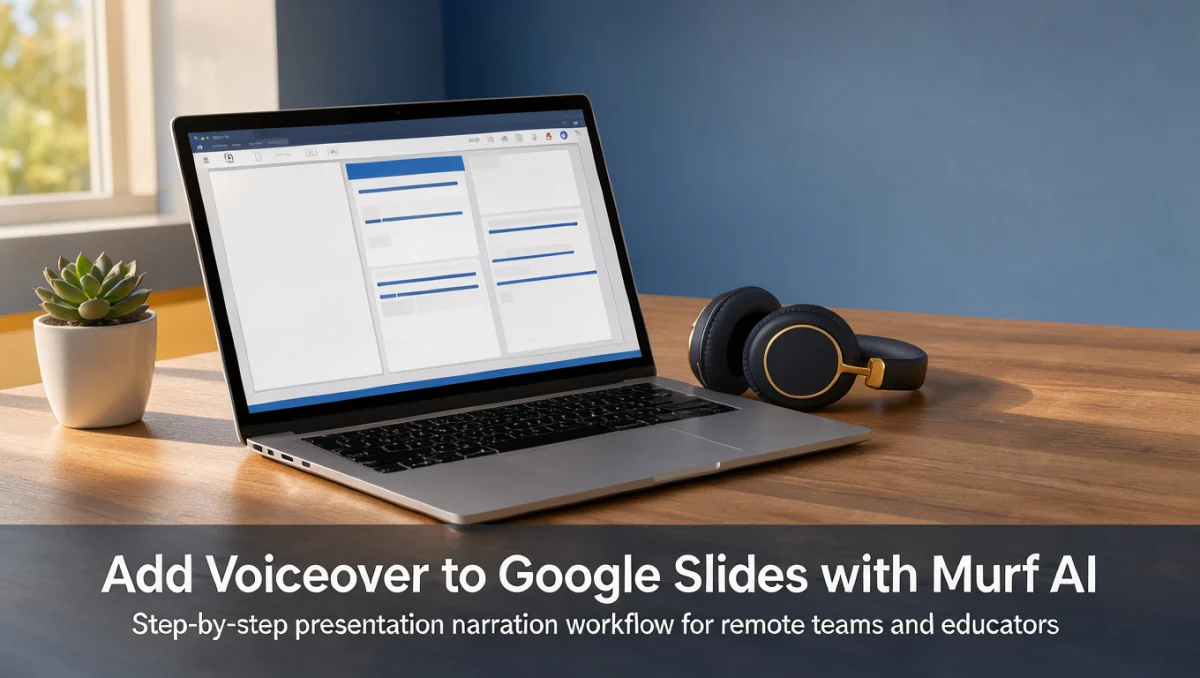
Wondering how to add voiceover to Google Slides with Murf AI? Combining cloud slide software with synthetic speech lets you build narrated training decks, classroom lessons, and business presentations without booking a recording session. Remote teams and self-paced learners often find that spoken explanations make dense material easier to follow, and the process is simpler than it first appears. Our editors at Tested Truth looked at this workflow with practical, everyday use in mind.
The core job breaks into three parts: writing tight speaker scripts, rendering realistic speech files inside your voice platform, and placing those audio clips on the correct slides. Evaluating tools in the broader Artificial Intelligence space comes down to how cleanly audio production fits into the document tools you already use. Confirming export formats and slide settings before you start prevents last-minute surprises during playback.
Quick verdict: Murf AI earns a testedtruth score of 7.8/10. It suits educators, trainers, and remote staff who want clean synthesized narration without buying microphone equipment. It is less suitable for teams that depend on spontaneous voice delivery or on slides that advance automatically in sync with the audio.
| Metric | Details |
|---|---|
| testedtruth score | 7.8/10 |
| Best for | Presenters who want scripted narration for asynchronous slide viewing |
| Not ideal for | Speakers who need improvised voiceovers or built-in slide sync |
| Key strengths | Natural-sounding speech, flexible script editing, and wide business-deck utility |
| What to check before buying | Storage rules, audio export formats, and licensing on the official Murf AI website |
1. How Tested Truth Reviewed Murf AI
This assessment covers what Murf AI is designed to do, who benefits most, and how it stacks up against comparable tools. We applied our seven criteria: features, ease of use, pricing and value, integrations, audience fit, support, and competitive position. Plans and limits change frequently, so treat our notes as a starting point and verify current details on the vendor's site. The article was drafted with AI assistance and then reviewed and edited by the Tested Truth Editorial Team.
2. Preparing Your Google Slides and Murf AI Setup
Murf AI is a text-to-speech platform that turns written text into spoken audio, making it useful for training videos, presentations, and internal updates. Before you start, get clear on the baseline steps so your script and media are organized before anything is published.
Lock in your slide order first. Reordering slides after you have already generated narration means redoing audio work. You will need a Google account for Slides and a Murf AI account for producing the narration files.
Decide where the finished audio will live. Google Slides can only insert audio stored in your connected Google Drive, so sharing permissions on that folder need to be set correctly, or viewers will hit access errors instead of hearing your narration.
3. Step-by-Step Workflow for Adding Murf AI Voiceover to Google Slides
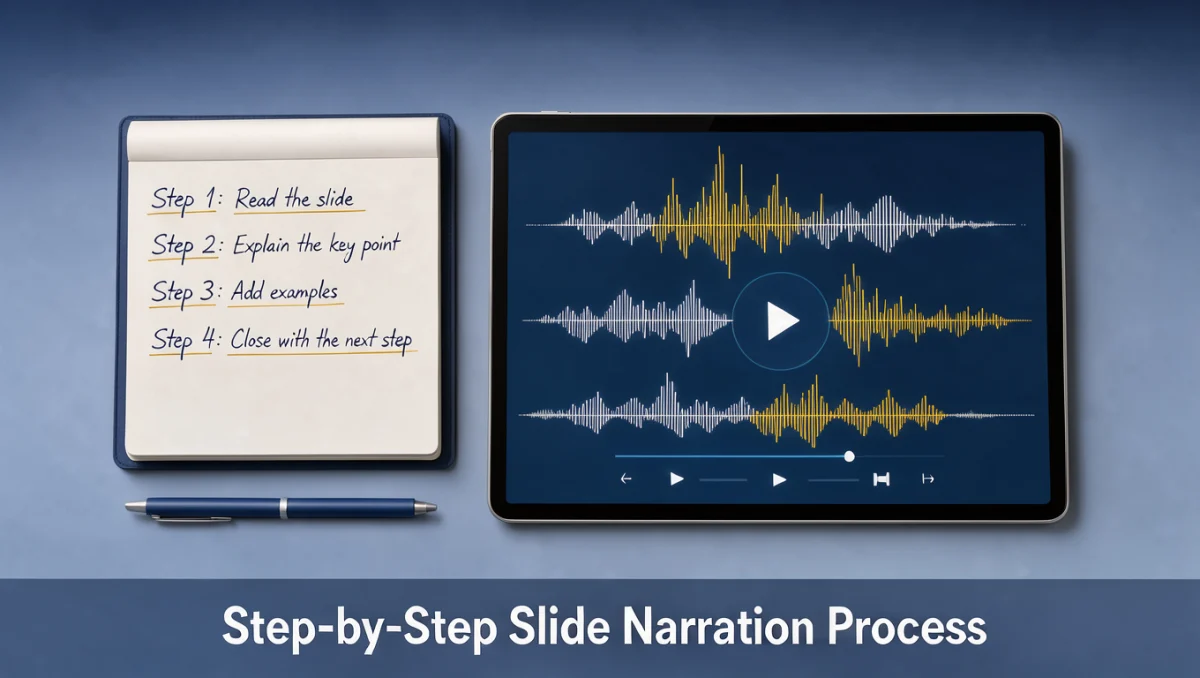
The process runs in a logical sequence, from drafting text to final playback. Working through the stages in order keeps the deck tidy and easy to update later.
3.1. Write and Tighten Each Slide Script
Draft the script for every slide in the speaker notes or a separate document. Short scripts are easier to listen to than long monologues. Reading each script aloud often reveals clumsy phrasing that would sound unnatural once synthesized.
3.2. Create Narration in Murf AI
Paste your scripts into the Murf AI editor. You can choose from several synthetic voice profiles and adjust pacing, tone, and emphasis to suit the subject. Listen to the preview and check pronunciation of technical terms, acronyms, and proper names.
3.3. Export the Audio Files
Download each narration segment as its own audio file. Label files systematically with slide numbers and topic names so larger decks stay manageable. Confirm on the official Murf AI website which export formats your account type supports.
3.4. Upload Audio to Google Drive
Move the exported files into a dedicated Google Drive folder for the presentation. Set that folder's sharing so anyone with the link can view or play the files. This prevents permission prompts when your audience opens the deck.
3.5. Insert Audio into Google Slides
Open the presentation, go to the target slide, and use the insert menu to select the matching audio file from Drive. A speaker icon will appear on the canvas. Drag it to a corner where it will not cover charts or key bullet points.
3.6. Set Playback Behavior
Select the speaker icon and open the audio options panel. Choose whether narration begins automatically when the slide appears or only when the viewer clicks the icon. You can also decide whether playback stops when the viewer moves to the next slide or carries on across slide changes.
4. Best Practices for Slide Voiceovers
Strong narrated decks balance clear audio with readable visuals. Good production habits keep the voice from competing with what is on screen.
- Keep scripts brief: Use narration to add context rather than reading every word on the slide.
- Maintain a consistent voice: Use the same synthetic voice throughout one deck for a unified listening experience.
- Name files methodically: Include slide sequence numbers in filenames so replacing a track later is simple.
- Set folder permissions early: Confirm viewing rights on your Drive folder before sending links to outside audiences.
- Place speaker icons consistently: Keep audio icons in the same corner on every slide so navigation feels predictable.
5. Common Mistakes to Avoid
Newcomers to synthetic narration often overlook basic setup details that spoil the viewing experience. Watching out for these saves time.
A frequent error is leaving the uploaded audio files restricted to your private account. External viewers then hear silence or see access-denied messages. Test the finished deck in an incognito window or from a second account before you distribute it.
Another pitfall is packing slides with long paragraphs of narration. Synthetic voices work best with short, punchy summaries that explain a chart or highlight a key principle. When slides turn into lengthy audio lectures, viewers tend to disengage quickly.
6. Who Gets the Most Value from Slide Narration
Narrated slides suit several audiences across corporate, academic, and independent work. Whether the format fits depends on how you communicate day to day.
6.1. Corporate Trainers and HR Teams
Internal trainers often build compliance modules, onboarding walkthroughs, and policy briefings as narrated decks. When policies change, teams can regenerate a single slide's audio rather than booking studio time to re-record.
6.2. Educators and Online Course Creators
Instructors building self-paced lessons can guide learners through each slide. Students benefit from hearing concepts explained step by step, particularly when working through technical diagrams or historical timelines at their own pace.
6.3. Remote Sales and Marketing Teams
Proposals and product overviews are often sent by email to prospects who cannot attend a live call. A narrated deck lets the presenter deliver a personalized pitch the recipient can watch whenever it suits them.
6.4. Teams Who Need Other Approaches
Groups that require real-time question handling or spontaneous dialogue should not rely on pre-recorded slide narration. Presentations built around physical demonstrations may also be better served by recorded video than by static slides with attached audio.
7. Frequently Asked Questions
What should I check regarding cloud storage permissions for slide voiceovers?
Make sure the Drive folder grants read access to everyone you plan to share the deck with. If the audio files stay private, outside viewers will get an access error instead of hearing the narration.
How do I choose between automatic playback and click-to-play narration?
Think about how the deck will be used. Automatic playback fits linear training modules where learners move through in order, while click-to-play gives readers control over when to listen, which suits information-heavy slides.
What script preparation steps help avoid unnatural synthetic speech?
Split long compound sentences into shorter, direct statements and spell out abbreviations before generating audio. Adding commas and periods helps the software place natural pauses in the final track.
Where should I confirm audio export formats before starting a project?
Check the export specifications on the official Murf AI website to see which file formats your plan offers. Knowing this in advance ensures the files work with your cloud storage and presentation software.
How should teams handle audio updates when slide content changes?
Keep a master document that pairs each slide script with its audio filename. When content changes, update only the affected script, export that one file, and replace the matching track in Drive.
8. Final Verdict on Murf AI for Google Slides
Using Murf AI for voiceovers in Google Slides is a dependable way to produce narrated decks without investing in recording equipment. The Tested Truth team evaluates products against consistent criteria so buyers can make informed decisions.
| Criterion | Score /10 | Reason |
|---|---|---|
| Features | 8.2/10 | Offers useful voice options, script editing controls, and adjustable pronunciation settings. |
| Ease of Use | 8.5/10 | The path from text entry to audio export stays straightforward for regular business users. |
| Pricing and Value | 7.4/10 | Confirm subscription details on the vendor website to weigh cost against your production volume. |
| Integrations | 7.2/10 | Audio must be transferred to cloud storage manually, which should be factored into your workflow. |
| Audience Fit | 8.6/10 | A strong match for trainers, educators, and asynchronous remote teams building narrated decks. |
| Support | 7.0/10 | Verify help options on the official website to make sure they fit your team's schedule. |
| Competitive Position | 7.9/10 | Holds a competitive text-to-speech position alongside alternatives such as ElevenLabs and Synthesia. |
Overall testedtruth Score: 7.8/10
If your main goal is consistent, asynchronous presentations for internal training or remote education, pairing Google Slides with synthetic speech is a practical choice. Review current subscription tiers and usage limits on the official Murf AI website before committing budget.
For questions about this review or software evaluation in general, contact our editorial team at Tested Truth or follow us on LinkedIn.