

Teams often ask how to import a PowerPoint with Beautiful.ai when they need to turn static slides into automated, polished layouts. Beautiful.ai is a presentation maker that relies on smart templates to handle spacing and alignment, so the work shifts from manual pixel-pushing to organizing content. The steps below show how the transfer works and where to pay attention.
Preparing Your Source Deck Before Upload
A clean source file produces a cleaner import. Complex vector art and proprietary fonts frequently shift during conversion, so a short inspection up front saves time later.
Checking Fonts and Brand Colors
Licensed corporate typefaces may not render in a web-based engine without a custom upload. Note your primary and secondary fonts along with the core color codes used in the original file. Compare them against the official Beautiful.ai font guidance to decide whether to upload fonts or select close alternatives.
Reducing Layer Clutter
Older decks often contain overlapping text boxes, nested groups, and transparent masks that confuse parsing. Delete redundant shapes and split crowded groups into single-topic elements. Cleaner input leads to clearer text containers after import.
Keeping a Visual Reference
Export a fixed-layout copy of your original deck so you have a baseline. This makes it easier to confirm that charts, arrows, and column alignments still carry the same meaning after conversion.
Step-by-Step Import Workflow
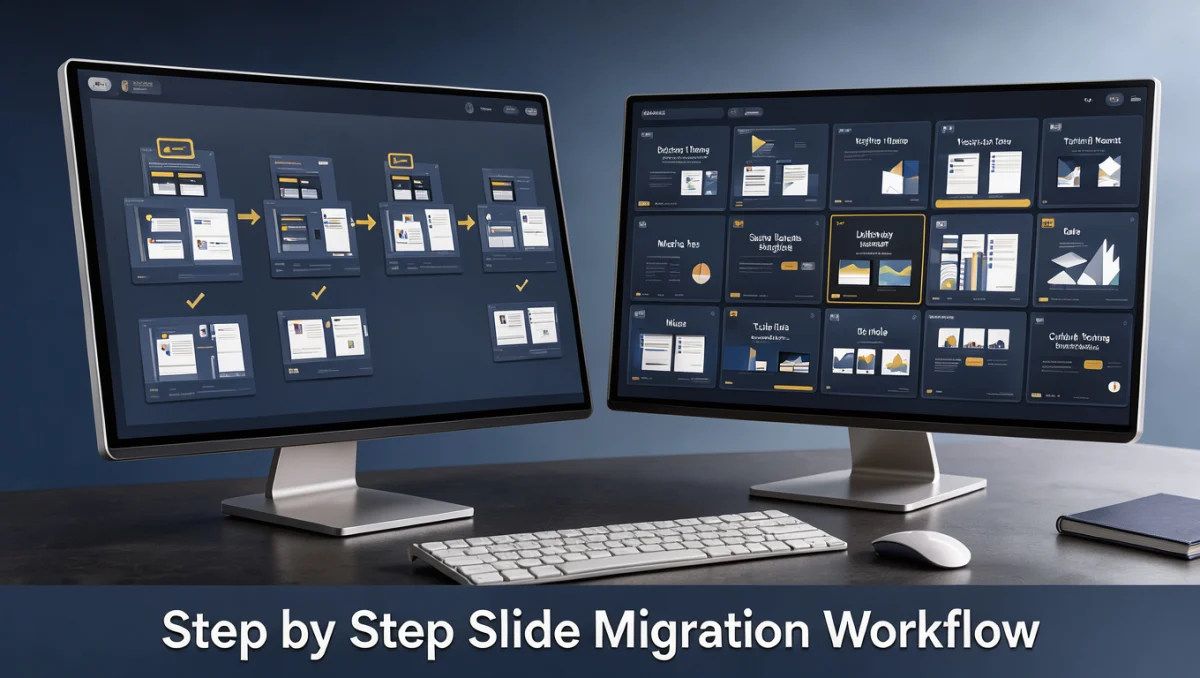
Following a consistent sequence helps you move a static presentation into a dynamic format without losing the narrative flow.
Step 1: Choose the Import Option
Open the deck creation area of your workspace. Look for the option that handles external presentation files, and select it instead of a blank project or pre-built theme.
Step 2: Upload the Presentation
Select your file and start the transfer. The parser separates headlines, body text, and images into editable components. Wait for processing to finish completely before opening the new workspace.
Step 3: Apply a Brand Master Style
Before editing individual slides, apply your theme at the project level. Setting color swatches, font hierarchy, and logo placement once keeps every card consistent, including those created by different team members.
Step 4: Convert Static Slides into Smart Templates
Imported slides usually appear as static cards. Convert each one into a native smart template, such as a timeline, comparison grid, or stat callout. The tool then redistributes your existing text into proportional containers.
Step 5: Verify Numbers and Tables
Check data labels, axis ranges, and percentages after conversion. Re-entering figures into native chart blocks ensures future updates recalculate visual proportions automatically.
Best Practices for Converted Slides
Structured template engines reward a disciplined editing style. Teams that adapt their habits tend to get better results.
Focus Each Slide on One Idea
Adaptive layouts work best when each slide communicates a single concept. Split dense updates into separate cards so the automatic spacing keeps margins balanced.
Check Image Sharpness
Photos and logos may lose clarity from earlier compression. Replace any degraded raster graphics with high-resolution originals using the native image upload tool.
Standardize Templates Across Departments
Recurring updates such as operations reports, financial summaries, and retrospectives each suit a specific card type. Document preferred structures in an internal style guide to speed up onboarding.
Common Mistakes to Avoid
- Keeping long paragraphs: Dense text shrinks to unreadable sizes in templates. Condense sentences into bullet takeaways before converting.
- Ignoring disconnected shapes: Hand-drawn flowchart lines may import as loose images. Rebuild multi-step sequences with native timeline elements.
- Skipping contrast checks: Theme changes can place light accent text on light backgrounds. Review readability under normal room lighting.
- Overlooking sharing settings: Confirm viewer and editor permissions on the official Beautiful.ai account page before inviting external stakeholders.
Frequently Asked Questions
Why do formatting shifts happen during conversion?
Shifts occur when source files use custom vector graphics, non-standard margins, or local fonts the platform does not have. Because the software rebalances content using internal layout rules, unanchored items move. Simplifying slides before upload reduces surprises.
Where can I confirm current file size and format limits?
Limits and accepted formats depend on current server policies. Check the official Beautiful.ai documentation before migrating large archives of older decks.
Why might charts need manual data re-entry?
Some import filters read charts as flattened images rather than editable data. When that happens, values will not recalculate. Re-entering the numbers into native chart modules keeps bar heights and percentages accurate.
How should teams handle collaborative review after importing?
Assign one editor to standardize themes and layouts before inviting broader feedback. Letting several people change fonts and card layouts at once can create inconsistency.
Final Verdict
Knowing how to import a PowerPoint with Beautiful.ai bridges older slide archives and modern, automated presentation design. Intricate graphics and specialized typefaces still need manual adjustment, but standard corporate decks can be rebuilt far faster. Readers who want independent software evaluations can explore the resources at Tested Truth before making a purchasing decision.
| Criterion | Score /10 | Reason |
|---|---|---|
| Features | 7.6 | Smart templates and automated spacing solve alignment problems, though detailed graphic customization stays limited. |
| Ease of Use | 8.4 | The interface makes card conversion straightforward for users without design training. |
| Pricing and Value | 7.1 | Verify current subscription plans on the official pricing page to judge value against your slide volume. |
| Integrations | 6.9 | Confirm third-party storage connectors and asset library access on the official platform directory. |
| Audience Fit | 8.1 | The workflow suits non-designers who must produce clean status reports and proposals consistently. |
| Support | 7.2 | Cross-check support options and documentation on the official vendor help portal. |
| Competitive Position | 7.7 | Differs from Canva and Prezi by prioritizing strict automated layout logic over freeform creation. |
testedtruth score: 7.6 / 10
Freelancers and solo entrepreneurs can use Beautiful.ai to assemble client proposals without hours of margin tweaking. Small business owners and marketing teams benefit from smart slide imports that keep quarterly pitches on-brand. Technical illustrators who depend on micro-level animation or custom vector work may find freeform tools better suited to their needs.
For questions about presentation software assessments, contact us at https://testedtruth.com/contact/ or follow the editorial team on LinkedIn at https://www.linkedin.com/company/testedtruth/.
See More how to import a powerpoint with beautiful ai · Artificial Intelligence