
testedtruth may earn a commission when you buy through links on this page, at no extra cost to you. This does not affect our ratings.
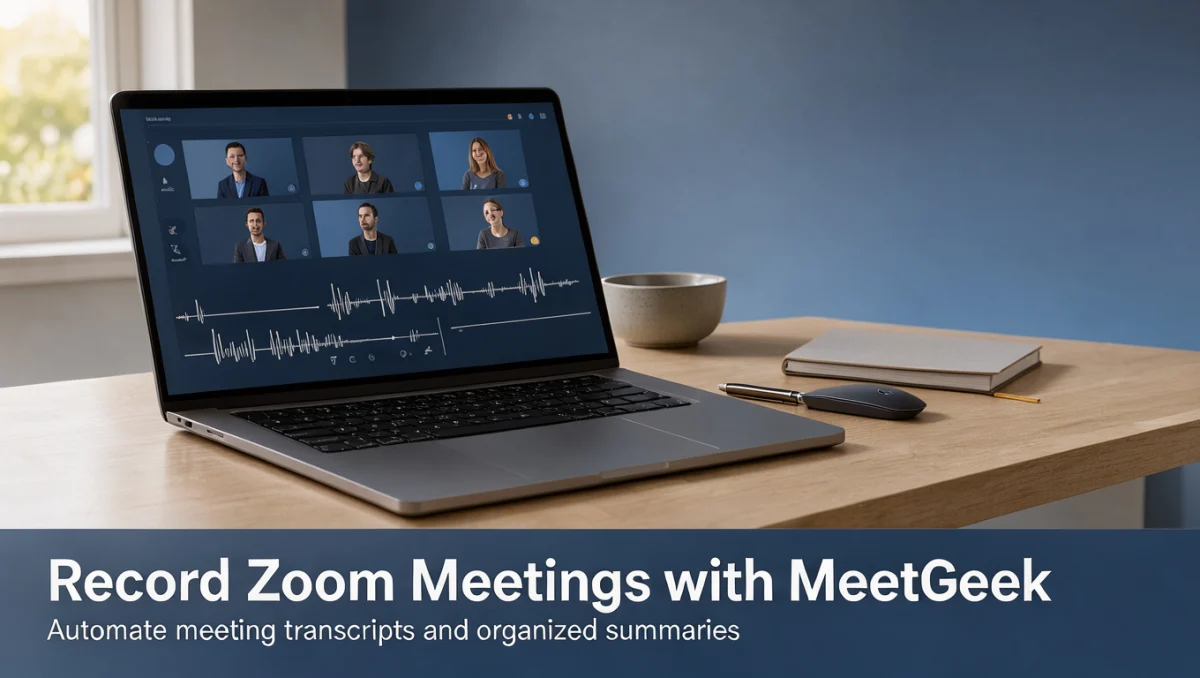
Getting started with how to record zoom meetings with meetgeek begins with linking your calendar and defining capture rules, so automated transcription can document each discussion accurately. Meeting recorder assistants capture audio and produce written summaries, giving distributed teams reliable project records without manual typing. At Tested Truth, we evaluate whether these automated assistants solve real documentation problems for modern professionals.
MeetGeek is an automated meeting recording and AI transcription tool built to capture conversations, generate readable summaries and store discussion insights. Instead of depending on manual notetaking during video calls, teams use tools in this category to preserve action items and share key moments with colleagues who could not attend.
Quick verdict: With an overall score of 7.9 out of 10, MeetGeek offers a dependable documentation workflow for professionals who want automated summaries from scheduled calls. It suits teams that run frequent client interviews or internal planning sessions, and it is less suitable for people who rarely hold video meetings or prefer handwritten notes.
| Metric | Assessment |
|---|---|
| testedtruth score | 7.9 / 10 |
| Best for | Teams and professionals seeking automated call documentation and searchable meeting records |
| Not ideal for | Solo users who hold few virtual meetings and do not need written transcripts |
| Key strengths | Automated speech capture, searchable text generation and organized summary creation |
| What to check before buying | Review the official MeetGeek pricing page to confirm monthly recording allowances and seat structure |
1. How testedtruth Reviewed MeetGeek
This review examines what MeetGeek is designed to do, who it serves and how it compares with similar tools, using the seven testedtruth criteria: features, ease of use, pricing and value, integrations, audience fit, support and competitive position. Plans, prices and limits change frequently, so we highlight what to confirm on the official website before purchasing. This article was researched and drafted with the help of AI tools, then reviewed and edited by the testedtruth Editorial Team.
2. Before You Start Your Zoom Recording Workflow
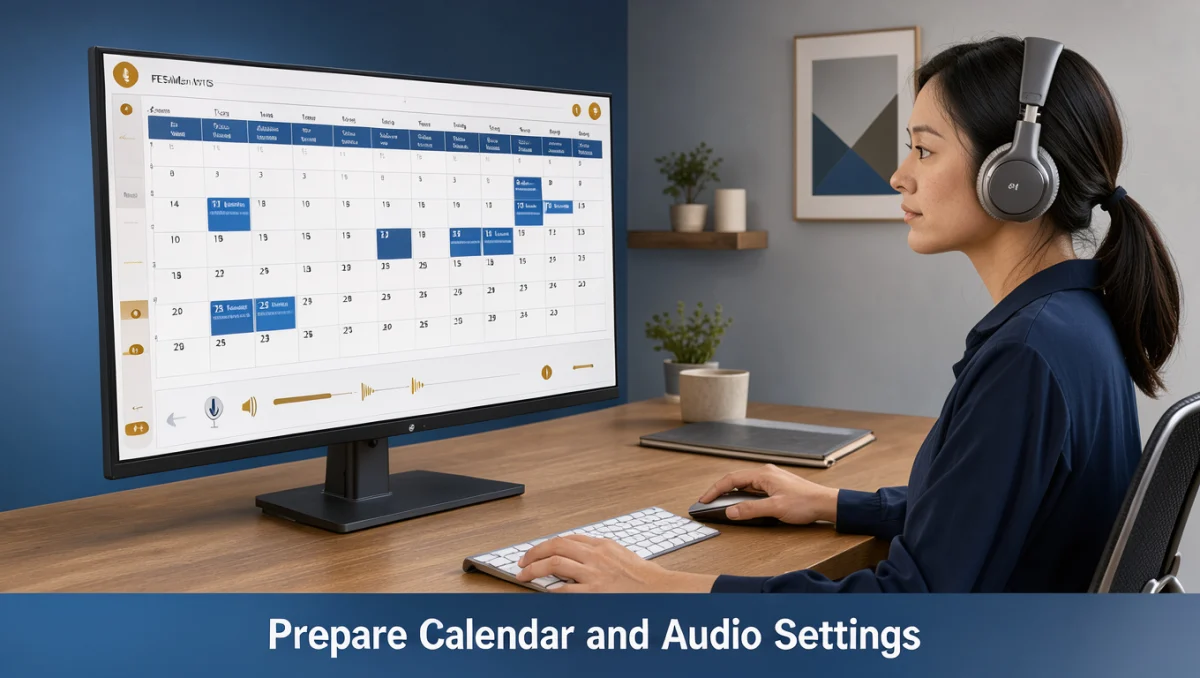
Preparing your conferencing software and account settings before a live call prevents common capture errors. Meeting recording tools in the artificial intelligence category need the right permissions within video conference environments so they can join meetings as a virtual participant and record incoming audio.
2.1. Account Connection and Calendar Synchronization
Linking your work calendar is the main way a meeting assistant identifies upcoming video sessions. Once your schedule is connected to your transcription tool, the software detects conference links in event invitations and readies its assistant to join the room at the scheduled start time.
Check your conference platform permissions to see whether external participants need host approval before entering. If your meeting room uses a waiting room policy, the host must admit the virtual assistant into the session just as they would any other attendee.
2.2. Participant Consent and Meeting Notices
Recording audio in collaborative sessions carries privacy obligations that every organization should address formally. Teams should tell clients and colleagues before activating transcription software during shared conversations.
Many meeting tools display an automatic notice in the chat window when the assistant joins, informing participants that recording and transcription are underway. Organizations that handle sensitive personal data or healthcare records should review local legal requirements on consent before enabling automated meeting recorders across departments.
3. Getting Started Workflow for Recording Zoom Calls
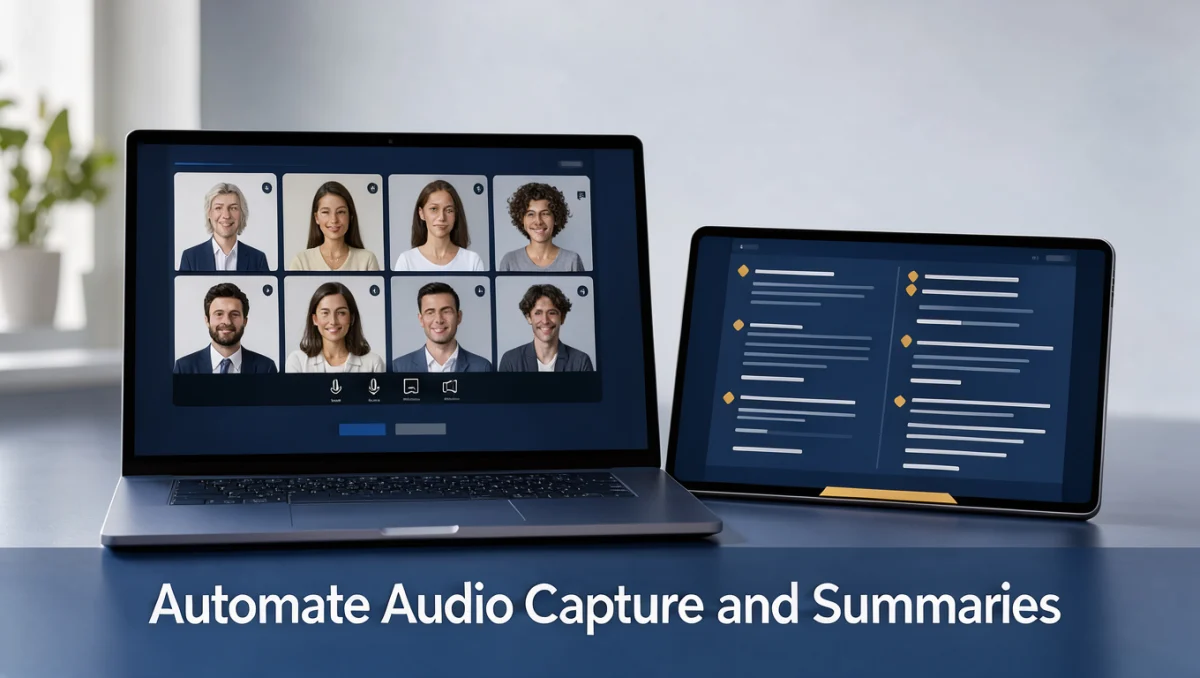
A dependable recording workflow lets participants focus on the conversation instead of administrative tasks. Following a structured procedure keeps every discussion archive complete and easy to retrieve.
3.1. Scheduling the Meeting and Setting Join Preferences
The workflow starts in your calendar application, where you create an event invitation with an embedded conference link. When calendar sync works properly, the recording software registers the session details and queues its virtual assistant.
Organizations often want control over which sessions get recorded. Most meeting recording platforms let users choose whether the assistant joins every calendar event automatically, only meetings where the user is the host, or only events marked with specific participant tags. Confirm these join preferences in your account settings before high-stakes calls.
3.2. Admitting the Recorder and Capturing the Conversation
When the scheduled time arrives and participants open the virtual room, the recording assistant attempts to enter. If your meeting environment uses a waiting room, the host clicks to admit the assistant into the call.
During the session, the assistant acts as a silent attendee capturing audio from active speakers. To support accurate speech recognition, team members should use dedicated microphones and avoid overlapping speech whenever possible.
3.3. Processing Summaries and Managing Meeting Transcripts
When the host ends the call, the recording assistant leaves the room and begins post-processing the captured audio. The software converts speech to text, identifies distinct speakers where voice profiles differ and organizes the discussion into topical sections.
Once processing is complete, users can review key takeaways, copy assigned action points and check exact verbatim passages. Setting up clear notification routines ensures team members receive automated recap links promptly after each call.
4. Best Practices for Clear Audio and Accurate Summaries
The quality of automated meeting transcripts depends directly on environmental conditions and clear speaking habits. Small changes to your routine can noticeably improve summary accuracy.
- Use external headsets or dedicated desktop microphones rather than low-cost built-in computer speakers to avoid audio echo.
- Ask each remote participant to connect through an individual audio feed so speaker separation algorithms can distinguish voices cleanly.
- State critical decisions and numerical goals clearly during the call so summary generators capture essential context accurately.
- Confirm on the official MeetGeek website which languages the transcription engine handles well if your organization hosts multilingual sessions.
- Assign a team member to verify that the virtual assistant was admitted successfully whenever strict conference room security settings are active.
5. Common Mistakes to Avoid When Recording Meetings
Small omissions during setup can lead to missed recordings or disorganized meeting archives. Following standard preventive steps keeps your recordkeeping reliable.
5.1. Forgetting to Admit the Assistant from the Waiting Room
The most common operational failure happens when hosts enable strict waiting rooms and overlook the alert informing them that the assistant is waiting. If the virtual attendee stays in the waiting room for the whole call, no audio reaches the transcription engine and no notes are generated.
Designating a co-host to manage admissions ensures external participants and recording assistants enter the conversation promptly at the scheduled start time.
5.2. Misconfigured Calendar Privacy and Auto-Join Rules
Another frequent problem is unintended recording of personal appointments or confidential consultations. When calendar rules tell the software to join every event indiscriminately, personal calendar blocks may receive recording invitations by mistake.
To prevent this, review auto-join filters and limit capture to events that contain specific colleague domains or designated video platform links.
6. Who Should Use MeetGeek for Zoom Documentation
Different roles benefit from automated transcription in different ways, depending on call volume and collaboration needs.
6.1. Project Managers and Remote Teams
Project leaders juggling multiple initiatives often struggle to moderate discussions while also taking careful minutes. Automated meeting documentation lets project managers lead the conversation while keeping a verifiable written record of deadlines, action items and milestone agreements.
6.2. Client Services and Agency Consultants
Account executives and customer success specialists who run frequent client discovery sessions gain real efficiency by archiving client feedback. Searchable transcripts reduce misunderstandings about project scope and revision requests.
6.3. Students and Solo Operators
Freelancers and students who host only occasional discussions may find full transcription platforms more complex than they need. For low call volumes, built-in recording options or simple manual note templates often suffice without adding another subscription.
7. How to Choose the Right Plan for Meeting Recording
Subscription models for AI meeting assistants usually differ in transcription capacity, storage retention and administrative controls. Before committing budget, compare plan limits against your team's requirements.
| What to check | Why it matters |
|---|---|
| Monthly recording caps | Vendors often limit total transcription hours per billing cycle, so high-volume teams could run out of processing capacity partway through the month. |
| Seat management policies | Some tools require each team member to hold an individual paid license to view shared folders or edit generated transcripts. |
| Workspace collaboration features | Centralized admin dashboards and shared department repositories help larger companies control corporate intellectual property. |
| Audio and video retention periods | Certain plans keep raw media indefinitely, while others archive transcripts as text and delete large video files after a set period. |
8. Frequently Asked Questions
8.1. What audio equipment produces the cleanest automated meeting transcripts?
Dedicated cardioid condenser microphones or wired headsets deliver the clearest input for speech recognition systems. Built-in laptop microphones often pick up fan noise, keyboard clicks and room reverberation, which raises error rates across automated documentation tools.
8.2. How should teams handle sensitive customer information during recorded meetings?
Organizations should set a clear disclosure policy that informs clients before recording begins and lets attendees request a pause during confidential discussions. Administrators should also verify data retention procedures on the official MeetGeek website to make sure meeting storage matches organizational privacy standards.
8.3. What steps ensure a transcription assistant joins every mandatory client call?
Verifying calendar synchronization and checking that meeting links are formatted correctly in event invitations is the most reliable method. Hosts should also turn off restrictive waiting room settings for recurring internal meetings, or name a dependable co-host to admit virtual participants at the start of each session.
8.4. When should an organization consider an alternative meeting recorder?
Teams deeply invested in a specific CRM or project management ecosystem may evaluate competitors such as Otter.ai or Fathom depending on their workflows. Reviewing your sharing requirements will show whether a standalone tool or an ecosystem-integrated option better fits your goals.
9. Final Verdict on Recording Zoom Calls with MeetGeek
Using MeetGeek to record and transcribe Zoom calls streamlines documentation for remote teams that need reliable archives of important discussions. The tool takes on the work of capturing audio, identifying conversation segments and distributing readable notes, so team members can concentrate fully on collaborative problem-solving.
| Criterion | Score / 10 | Reason |
|---|---|---|
| Features | 8.2 / 10 | |
| Ease of Use | 8.4 / 10 | |
| Pricing and Value | 7.6 / 10 | |
| Integrations | 7.8 / 10 | |
| Audience Fit | 8.0 / 10 | |
| Support | 7.2 / 10 | |
| Competitive Position | 7.8 / 10 |
testedtruth overall score: 7.9 / 10. MeetGeek is a strong choice for distributed teams, account managers and project leaders who want dependable meeting summaries. Before selecting a subscription, buyers should review their monthly meeting volume and confirm seat requirements on the official vendor pricing page.
Readers with questions about meeting recording workflows can contact the editorial team at Tested Truth or connect with testedtruth on LinkedIn via https://www.linkedin.com/company/testedtruth/.